[BETA]




How to Subscribe to a YouTube Channel as a Podcast (RSS Feed Guide)
25 February 2026
This guide explains how to turn a YouTube channel into a podcast RSS feed using PodTube, so you can listen to YouTube audio in your favorite podcast app.
PodTube converts a YouTube channel into a podcast RSS feed, allowing you to:
This tutorial shows how to create a YouTube channel podcast RSS feed step by step.
Step 1 — Log in to Your PodTube Account
In the Members Area, log in to your PodTube account.
Step 2 — Open the Channel Subscription Page
On your Dashboard, click:
Subscribe a YouTube Channel

This will open the subscription form where you can create your YouTube podcast feed.
Step 3 — Enter the YouTube Channel Link
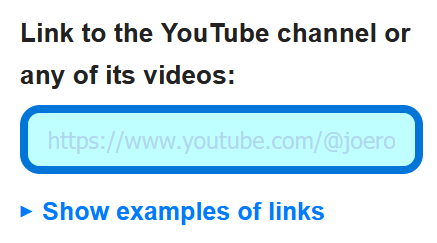
In the field "Link to the YouTube channel or any of its videos", enter:
PodTube will automatically identify the channel and retrieve the required information.
Supported YouTube Link Formats
Examples of supported link formats:
⚠️ Some links such as:
may work on YouTube but are not official channel links and are not supported by PodTube.
Step 4 — Select the Audio Format
Choose the Audio Format for your podcast feed.
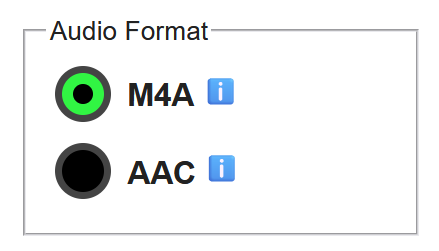
Recommended: M4A
M4A is recommended because:
Choose AAC only if your device or podcast app has trouble playing M4A (this is rare).
AAC downloads are always slower than M4A.
Step 5 — Choose Video Types (Supporter 5+ Only)
If your membership tier allows it (Supporter 5+), you can choose which types of videos to include in the subscription:
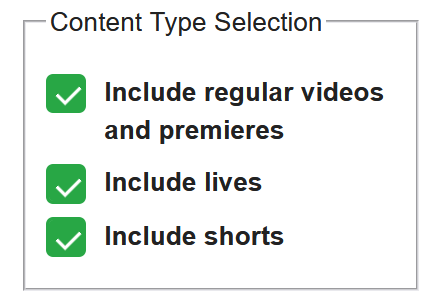
If your membership tier does not include this option, all video types will be included automatically.
Step 6 — Videos Without Duration (Supporter 5+ Only)
If your membership tier allows it (Supporter 5+), you may choose to include Videos Without Duration.
Enabling this option is not recommended.
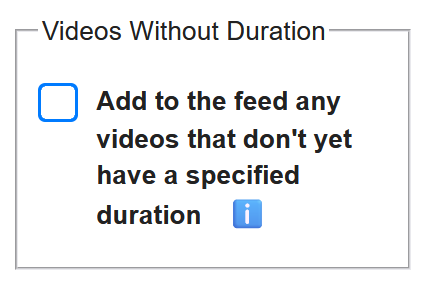
Videos without duration include:
Audio for these videos cannot be downloaded yet, so including them usually provides no practical benefit.
If your membership tier does not include this option, Videos Without Duration will remain automatically unchecked.
Step 7 — Confirm the Copyright Statement
You must confirm that:
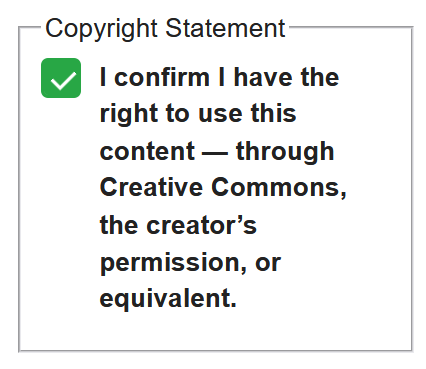
Step 8 — Create the YouTube Podcast Feed
Click the Subscribe button.
PodTube will:
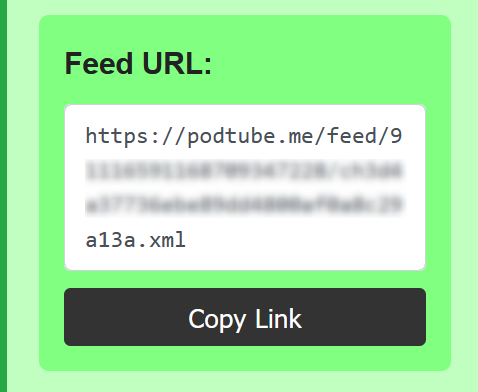
Step 9 — Copy the Podcast RSS Feed Link
Copy the generated subscription link (RSS feed URL).
This is your YouTube channel podcast feed.
Step 10 — Add the Feed to Your Podcast App
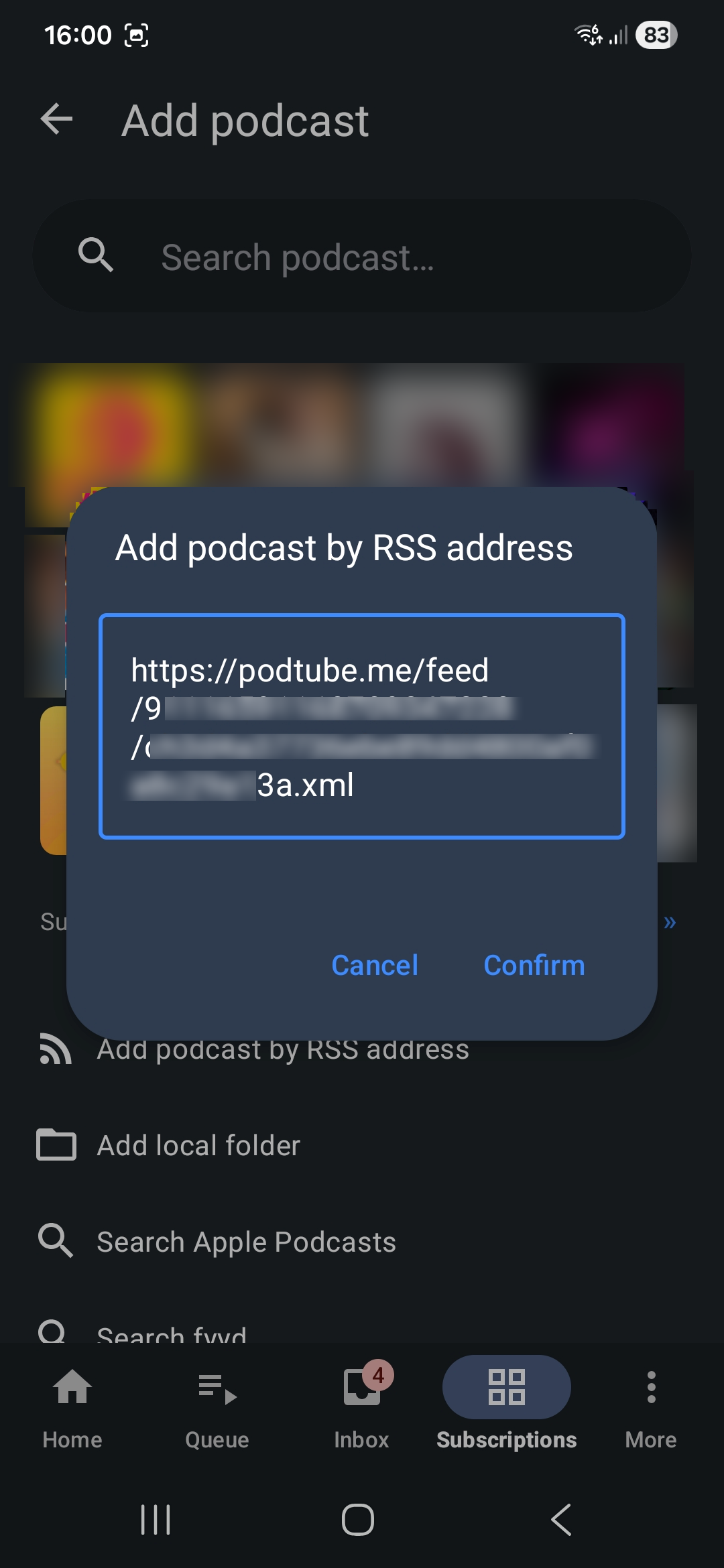
Open your podcast app and create a new subscription using the RSS feed link.
The exact steps vary depending on the app. The option is usually called:
After adding the feed, your podcast app will automatically receive new episodes whenever new videos are published on the YouTube channel.
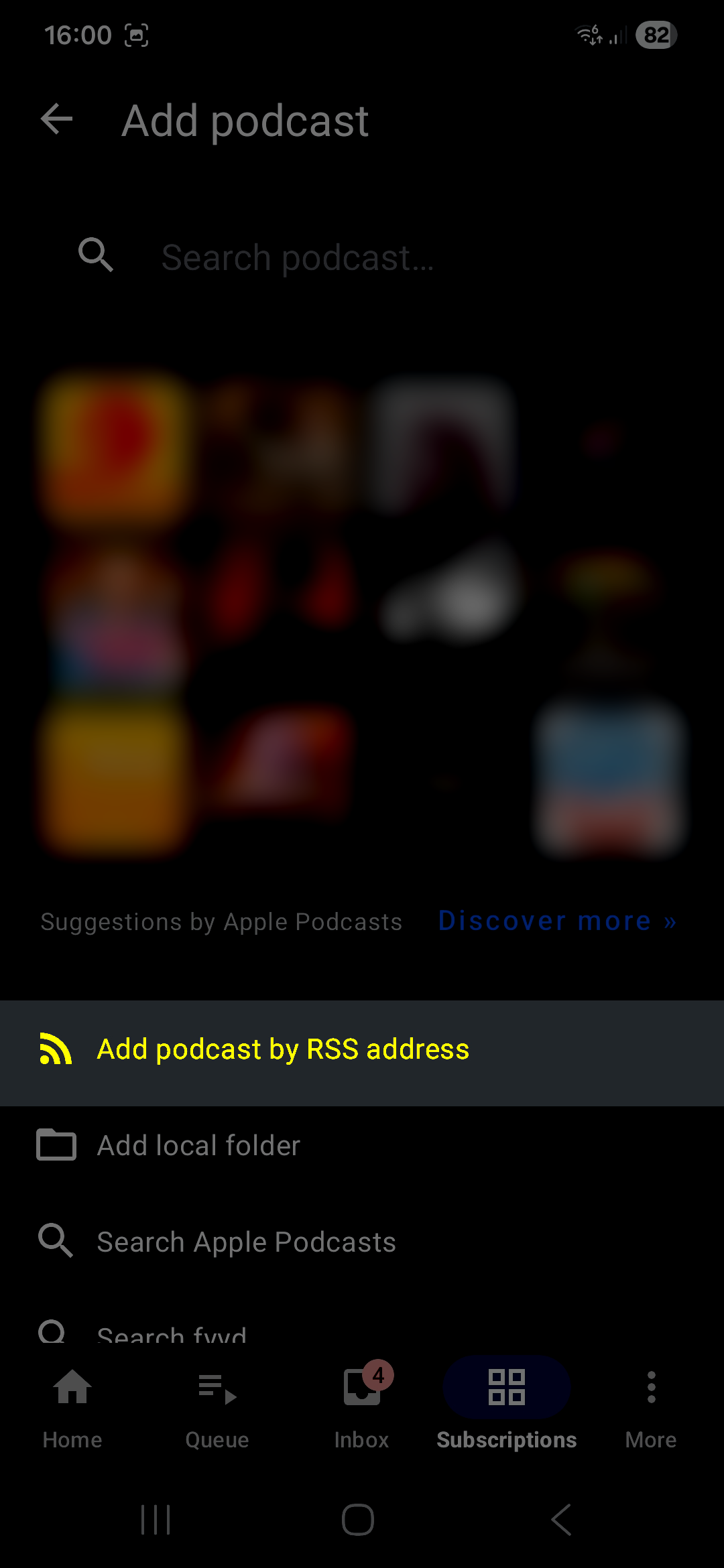
Below is an example of how to add the feed in AntennaPod, the recommended podcast app for Android: